Guides
How to track employee attendance in Notion
Updated September 2, 20266 min read
Build one Attendance database with a Person property, a Clock In and Clock Out date property, and a formula that subtracts them into hours. Add two button properties that stamp the current time into those fields, then layer a calendar view for the month and a board view grouped by employee. That is the whole system — about twenty minutes of setup, and it runs on Notion's free plan.
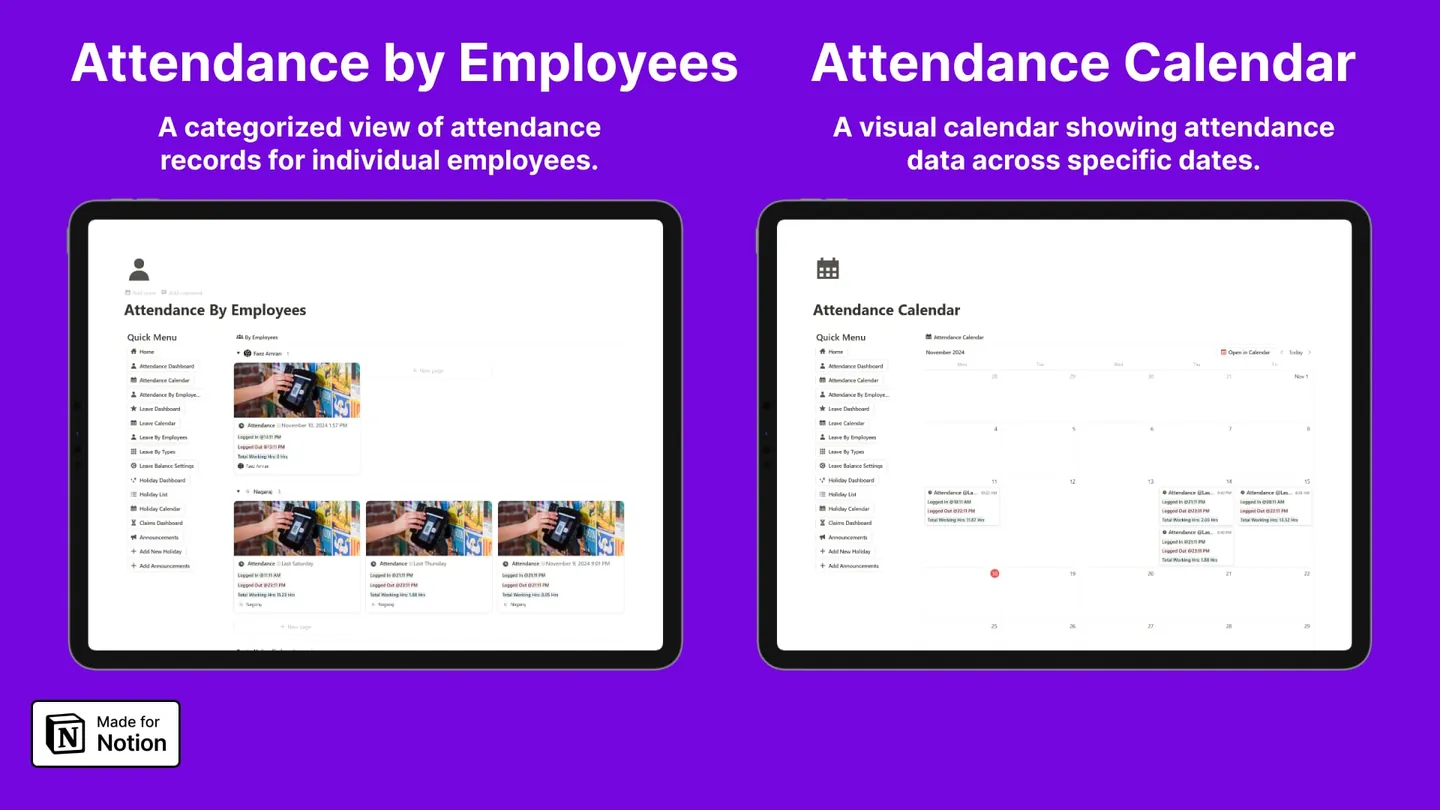
Attendance is the piece most teams try to solve with a spreadsheet, and it is the piece a spreadsheet is worst at. Someone has to remember to fill it in, nobody can see it at once, and the moment you want "hours worked by person last month" you are writing a pivot table.
Notion handles it better, not because it is clever, but because the data entry and the reporting are the same object. This guide builds the whole thing from an empty page.
What you are building
One database, six properties, three views. That is genuinely all of it:
| Property | Type | What it does |
|---|---|---|
| Employee | Person | Who the entry belongs to |
| Date | Date | The working day |
| Clock In | Date (with time) | Stamped by a button |
| Clock Out | Date (with time) | Stamped by a button |
| Total Hours | Formula | Clock Out minus Clock In |
| Notes | Text | Late, half day, off site |
If you want the finished version rather than the build, the free attendance tracker is exactly this, already set up with sample data.
Step 1: Create the Attendance database
Add a new page, type /database and choose Table — Full page. Name it Attendance.
Delete the default Tags property. Add these:
- Employee — type Person. Not Text. Person links to a real Notion account, which is what makes filtering by "me" possible later.
- Date — type Date, time off.
- Clock In — type Date, time on.
- Clock Out — type Date, time on.
- Notes — type Text.
Turning time on for Clock In and Clock Out matters. Without it the subtraction in the next step has nothing to subtract.
Step 2: Add the hours formula
Add a property called Total Hours, type Formula, and paste:
if(
  empty(prop("Clock Out")),
  0,
  round(dateBetween(prop("Clock Out"), prop("Clock In"), "minutes") / 60 * 100) / 100
)
Three things are happening. dateBetween returns the gap in minutes; dividing by 60 turns that into hours; the round(x * 100) / 100 trims it to two decimals so you get 7.53 rather than 7.533333333.
The empty() guard is the part people skip. Without it, a row where someone has clocked in but not out shows a large negative number, and any sum built on top of it is wrong for the rest of the day.
Do not use a Number property and type the hours in
It seems simpler and it removes the entire point. A typed number cannot be audited, cannot be corrected from the source timestamps, and quietly drifts from reality the first time someone estimates.
Step 3: Add clock in and clock out buttons
This is what makes the database usable by people who do not care about Notion.
Add a property of type Button, name it Clock In. In the button editor:
- Choose Edit pages
- Target: This page
- Set Clock In to Now
Repeat for a second button called Clock Out, setting the Clock Out property to Now.
An employee now opens the database, finds their row, and taps a button. No typing, no format to get wrong, and the timestamp is real rather than remembered.
Buttons only appear in table rows if the property is visible in that view. If you cannot see them, open the view's Properties menu and toggle them on.
Step 4: Build the calendar view
Add a view, type Calendar, and set Show calendar by to the Date property.
A month of attendance in one screen is the single most useful view in the system. Gaps are visible without filtering, patterns show up on their own, and "who was in on the 14th" stops being a question you run a query for.
Step 5: Group a board by employee
Add a view, type Board, and set Group by to Employee.
Each person becomes a column. This is the view you open during a review, or when someone asks how often a specific person has been in this month. Sort each group by Date descending so the most recent entry sits at the top.
Step 6: Roll hours up to an Employees database
The board view answers "how often". It does not answer "how many hours". For that you need a second database.
Create an Employees database with a Name property and a Relation to Attendance. Then, back on Employees, add a Rollup:
- Relation:
Attendance - Property:
Total Hours - Calculate: Sum
Filter the rollup by date range and you have monthly hours per person, computed rather than tallied.
Do not skip the Employees database because the Person property already exists
The Person property identifies who. It cannot aggregate. Without a relation there is no rollup, and without a rollup you are back to reading numbers off a screen and adding them up.
Common mistakes
Letting employees create their own rows. They will forget the date, or set it to today when the entry is for yesterday. Create the day's rows yourself with a repeating template, or use a Notion automation on the database to generate them.
One database per month. It feels tidy and it destroys every rollup you built. Keep one database and use filters; archive to a second database once a year if performance suffers.
Trusting Clock In without Clock Out. People remember to arrive and forget to leave. Add a filtered view — Clock Out is empty and Date is before today — and clear it once a week. Five minutes, and it keeps the hours honest.
Making attendance mandatory before anyone wants it. If nobody was tracking attendance before, a new daily obligation lands badly. Start with the calendar view visible to everyone and no enforcement, and let the usefulness make the case.
When to stop building
This tracker is complete for a team of up to about fifty. Past that, view performance and the lack of row-level privacy both start to bite, and dedicated HR software earns its per-seat cost.
What it does not cover is leave. Attendance tells you who was in; it says nothing about who is approved to be out next Thursday. That is a separate system with its own approval flow, and it is the natural next thing to build.
Or start from the finished version
Attendance, leave, balances, holidays and reimbursements, already wired together. $59 one-time.
Common questions
Can employees clock in from their phone?
Yes. Button properties work in the Notion mobile app, so an employee opens the database, finds their row for today, and taps Clock In. If you want it to be one tap from the home screen, add the database as a mobile widget or pin the page as a favourite.
How do I stop employees editing each other's attendance?
You largely cannot, and this is Notion's real limit. Permissions are page-level, not row-level, so anyone with edit access to the database can edit any row. The workable compromise is to give employees a linked view filtered to themselves and rely on the fact that every edit is attributed in the page history.
Will the hours formula handle overnight shifts?
Yes, as long as Clock Out carries the next day's date. dateBetween works on the full timestamp, not the time of day, so a shift from 22:00 to 06:00 returns eight hours correctly.
How much attendance data can Notion hold?
The database limits are far higher than a small team will ever hit, but views get noticeably slower somewhere past a few thousand rows. For a team of twenty that is roughly two years of daily entries. Archive to a second database annually and it stays fast.
Skip the build
The full HR system, already wired. $59 one-time.
Read next
Back to the guide index.